Documents
How to Check If a PDF Has Been Edited
Check a PDF with trusted copies, signature validation and metadata. Learn how to view PDF and Word metadata and what each field can and cannot prove.
Published · Updated · 16 min read
On this page
The most useful way to check whether a PDF has been edited is to compare it with an independently obtained reference, validate any digital signatures, and investigate differences in the fields that matter. Metadata and visual irregularities can help direct that investigation. Neither provides a universal edit detector.
Start by defining the claim you need to test. “This is the invoice the supplier issued” is different from “this file has not changed since it was signed.” A PDF can pass one check and fail the other. It can also contain legitimate changes: a completed form, an added approval or a corrected invoice. The review should establish what changed, whether it was authorized and whether the current document is suitable for the decision.
Choose your starting point
Preserve the received attachment, then take the route that matches the evidence available. If you have both a reliable reference and a digital signature, use both checks: they answer different questions.
| What you have | First action | Useful result |
|---|---|---|
| A reliable issuer or approved copy | Confirm the revision, then compare material fields and pages; see sections 1 and 4 | An exact list of relevant differences |
| A certificate-based digital signature | Validate it and inspect its signed revision; see section 2 | The validation status, covered content and permitted later changes |
| Neither a reliable reference nor a verifiable signature | Identify the disputed field and request issuer confirmation; use metadata and visual checks to guide that request | A specific evidence request rather than an unsupported edit verdict |
For a PDF you cannot compare with an issuer's copy, Fileverity's document report puts the creating software, dates, saved versions and signature presence in one record you can attach to the case, and document analysis compares the saved versions to name the pages whose text changed after the first save or after signing; see a sample document report. If your question is whether the wording was AI-written, the document verification tool assesses running prose in PDF, Word and text files. The steps below focus on PDF integrity and comparison with an issuer's copy.
1. Preserve the file and define the reference
Keep the attachment or download exactly as received. Record the sender or portal, receipt time, original filename and document identifier. Save the accompanying message when it explains the version or purpose. Make a separate working copy before adding comments, running OCR or saving a comparison report.
A SHA-256 hash identifies the received bytes. Matching hashes support byte identity; different hashes require comparison to establish what changed. Keep the hash with the file in the review record.
Obtain a reference through an established issuer portal or a contact already known to your organization. A second attachment forwarded by the same unknown sender is not an independent reference. Confirm that the reference covers the same account, period, invoice number and revision. Ask whether a replacement was issued before comparing an older approved copy with a current file.
Choose the reference to match the question:
| Review question | Appropriate reference | What a match would support |
|---|---|---|
| Did the received file change in transit? | The sender's independently confirmed original bytes | Identity with that particular file |
| Did the amount change after approval? | The approved version and its approval record | Agreement with the approved amount |
| Was this issued by the supplier? | Supplier portal copy or independently confirmed issuance record | Consistency with the supplier's record |
| Did content change after signing? | The revision covered by the relevant signature | Agreement with that signed state |
When no reliable reference is available, record that limitation early. You can still inspect the PDF, but you cannot infer an original amount simply from a suspicious-looking current amount.
2. Validate digital signatures and their scope
A handwritten mark, a typed name or an image of a stamp is a visual element. Its appearance does not establish that the PDF contains a certificate-based digital signature. Conversely, the absence of a handwritten-looking mark does not establish that the PDF is unsigned. Inspect the signature information in a viewer that supports PDF digital-signature validation.
In Acrobat, open the Signatures panel and run Validate Signatures. Review the details and use Signature Properties to inspect the signer's certificate. Adobe distinguishes a time taken from the signer's computer from a timestamp associated with a trusted timestamp server; record which the validator reports. The displayed signing time is not automatically independent proof of when signing occurred. Adobe's validation instructions
Use this review sequence for each relevant signature:
- Record the named signer, validation result, viewer version and validation time.
- Read the detailed reason for any warning. Separate a certificate trust problem from a reported content-integrity problem.
- Identify the revision that signature covers. Inspect the signed version as well as the current document.
- Determine what later changes are reported and whether the document's signing rules permit them.
- Confirm that this signer was the appropriate person or organization for the approval you need.
PDF signature validation is permission-aware. A certification signature can permit certain subsequent actions, such as form completion or additional signing; whether a specific change is acceptable depends on the document's rules. A valid result can therefore coexist with later changes. Adobe's technical workflow guide also distinguishes individual signature status from overall document status. Use those principles when interpreting the result, rather than treating a green icon as a statement that every byte is unchanged. Adobe Digital Signatures Workflow Guide, sections 2.1 and 3.4
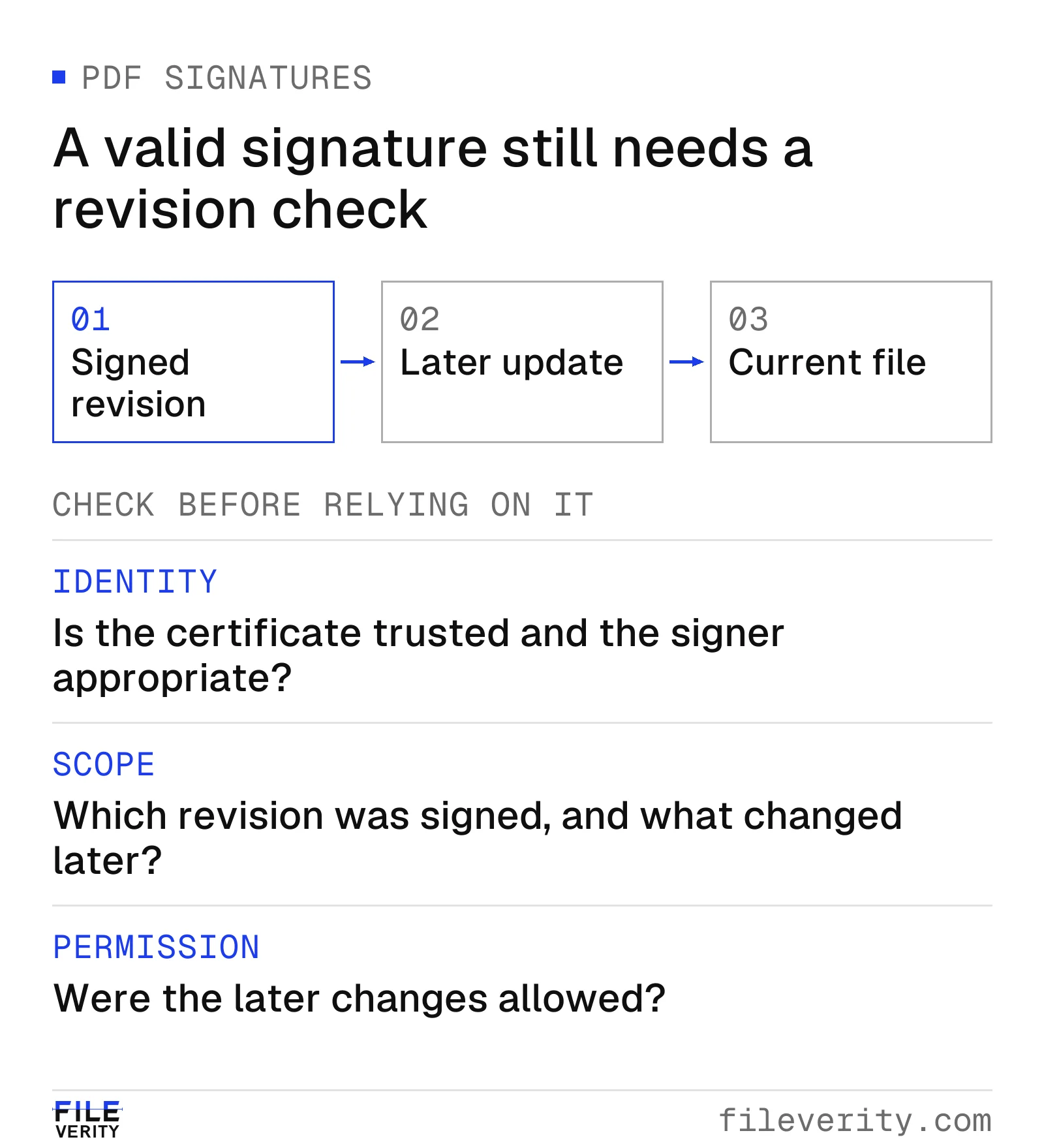
Conceptual illustration: a permitted later update can coexist with a valid earlier signature. Original diagram based on Adobe's signature workflow documentation.
The three checks are identity, scope and permission. Whether the invoice describes goods actually delivered requires separate transaction evidence.
For a signed revision, Acrobat's comparison command can help locate differences from the current version. Treat its output as a review aid and inspect the relevant fields yourself. Do not assume that viewing an earlier signature validates every subsequent revision. Adobe's signed-version comparison guidance
An invalid result needs its stated cause: it can concern prohibited changes, corruption, certificate validity or policy restrictions. An unknown result can mean validation has not run. These are different from a successfully validated signature. Adobe signature validation reference
If a certificate is untrusted, record “signer trust not established in this validation environment,” together with the warning. Do not change trust settings merely to obtain a successful result. An administrator may need to resolve certificate-chain, revocation-information or timestamp questions. A warning requiring that work is not, by itself, a finding of forgery.
3. Separate PDF metadata from filesystem dates
A date shown by your operating system belongs to its record of the local file. A date shown in PDF document properties is stored inside the document. These are different records of different events. Downloading or copying a file can affect local filesystem timestamps without changing the document's stated issue date.
For example, a statement dated October 1 might have a PDF creation date of October 2 and a local file creation date of October 28, when you downloaded it. That sequence is not inherently contradictory. A timezone difference or an omitted timezone can also make an apparent ordering unreliable. Preserve the displayed values and offsets rather than silently normalizing uncertain times.
PDF metadata can include creation and modification dates, application information and XMP metadata. Adobe documents metadata as editable information, separate from the visible page content. A changed metadata value therefore need not represent a changed amount, and a reassuring value is not an independent audit record. Adobe's document properties and metadata overview
Record the exact field and value, such as “Producer identifies application X.” An application label identifies recorded processing, not who performed it. If metadata conflicts with an issuer's stated export process, compare a known sample or ask the issuer to explain the difference.
How to view PDF metadata
To view PDF metadata, open the file's document properties in a PDF viewer, or read both metadata records with a command-line tool such as ExifTool. A viewer shows the common fields; ExifTool lists the Info dictionary and the XMP record separately, which matters when they disagree.
- Adobe Acrobat or Acrobat Reader. Choose File > Properties (Ctrl+D on Windows, Cmd+D on macOS) and open the Description tab. It lists Title, Author, Subject and Keywords, the Created and Modified dates, the Application that made the source document and the PDF Producer that wrote the file. The newer Acrobat layout also offers Menu > Document properties. Adobe: view document metadata, Adobe: find out when a PDF was created
- macOS Preview. Open the PDF, click the Info button in the toolbar (or choose Tools > Show Inspector) and select General Info. Apple describes the Inspector as showing details such as the author name; confirm any field that matters in Acrobat or ExifTool. Apple: view information about PDFs and images in Preview
- Windows File Explorer. Right-click the file, choose Properties and open the Details tab. This view is limited: what it lists depends on the PDF software installed, and the dates on the General tab belong to the file system, not the PDF.
- ExifTool. Run
exiftool -a -G1 file.pdf. The-aoption lists duplicate tag names and-G1prefixes each tag with its specific group, so Info dictionary entries and XMP entries appear separately. ExifTool options, ExifTool PDF tags
These fields are self-reported. Whatever program writes a PDF sets its title, author, creator, producer and dates, and metadata editors can change them without altering a visible character. A reassuring value is not an audit record, and a blank one may only mean the metadata was stripped. Read each field as a lead:
| Field | What it can show |
|---|---|
| Creator (Acrobat: Application) | The program that made the source document |
| Producer (Acrobat: PDF Producer) | The software that wrote the PDF file |
| CreationDate and ModDate (Acrobat: Created and Modified) | The creation and last-save times the file claims |
| Info dictionary compared with XMP | Whether the two records agree |
A Producer naming an editing tool, a modified date long after the created date, or an Info record that disagrees with the XMP record each justify asking the issuer how the file was produced. None shows what changed.
Word documents: where DOCX metadata lives
Word document metadata is stored in the file's document properties, which Word shows under File > Info and which sit inside the .docx package as docProps/core.xml and docProps/app.xml. A .docx file is a ZIP package, so a copy renamed to .zip lets you read both parts directly; leave the original untouched.
- core.xml holds the creator (author), lastModifiedBy, the revision number and the created and modified dates. python-docx: core properties
- app.xml holds fields such as Application and AppVersion Library of Congress: Office Open XML and TotalTime, the total editing time in minutes. Microsoft Learn: TotalTime
These values are self-reported too. Any tool that writes a DOCX can set them, and Word's Inspect Document command (File > Info > Check for Issues > Inspect Document) can remove document properties and personal information, so an empty author or editing-time field proves nothing. Microsoft: inspect your document The revision number counts saves only if the application increments it.
For a DOCX file, Fileverity's document report records the application and version, the created and modified dates, the revision count (shown as saved versions), the editing time recorded in the file and whether the package contains a digital-signature part. Like the PDF fields above, these point to questions for the issuer; they do not show what changed or who changed it.
4. Compare pages, extracted text and document structure
Begin with decision-relevant fields: identity, document number, dates, amounts, currency and payment destination. Then compare the surrounding material, page count and page order. A replaced appendix or missing page can change the meaning even when the front page matches.
A PDF may contain digitally generated text, scanned page images, or a mixture of images and text. OCR can make a scan searchable and selectable, so being able to highlight words does not prove that the visible words originated as digital text. Adobe describes OCR as converting text images into searchable, selectable text. Adobe's scan and OCR documentation
Compare the visible page and the extracted value when something matters. In a scan, OCR might read a zero as the letter O or omit a decimal point. That discrepancy can be a recognition error rather than a change to the document. The PDF Association notes that OCR accuracy depends on image quality and other factors; the PDF format itself does not guarantee it. PDF Association glossary, OCR
Use comparison settings that match the contents. Acrobat Pro offers text-only comparison and options for scanned documents; text-only mode ignores graphic differences. Save the settings and page ranges with the report so another reviewer knows what was included. Adobe's Compare Files guide
A practical review uses three passes:
| Pass | Examine | Common failure to avoid |
|---|---|---|
| Visible content | Side-by-side pages and important fields | Treating scan noise, alignment or font variation as proof of alteration |
| Text and values | Extracted text checked against the page | Counting OCR errors as changes to the source |
| Relevant document features | Forms, annotations, attachments and signature revisions | Assuming the page comparison inspected every embedded item |
If two viewers display a consequential field differently, preserve both observations and escalate the rendering discrepancy. Do not choose whichever display supports the expected conclusion. The same principle applies when a form value, extracted text and visible page disagree: record the disagreement before deciding which representation is authoritative for the workflow.
5. The technical principle: how a PDF can display new content while retaining old bytes
A PDF reader does not simply display every text string found in the file. A page refers to objects, such as content streams, using identifiers. A cross-reference structure tells the reader where those objects are stored. In a conventional incremental update, an object can be replaced by appending its new representation and a newer cross-reference section; the earlier representation can remain in the received bytes. The current reference chain determines which version is used. This is why searching the raw file for an old amount is different from establishing what the current page displays. PDF Association glossary: indirect object, cross-reference and incremental update
Consider a deliberately simplified example. A page points to object 17 0 R. In revision A, that object supplies a content stream displaying “Total: 8,400.” An incremental update appends a replacement for object 17 whose stream displays “Total: 8,900,” together with reference information pointing to its new location. The current reader resolves the page through the updated object; a specialist examining earlier revisions may find the older representation.
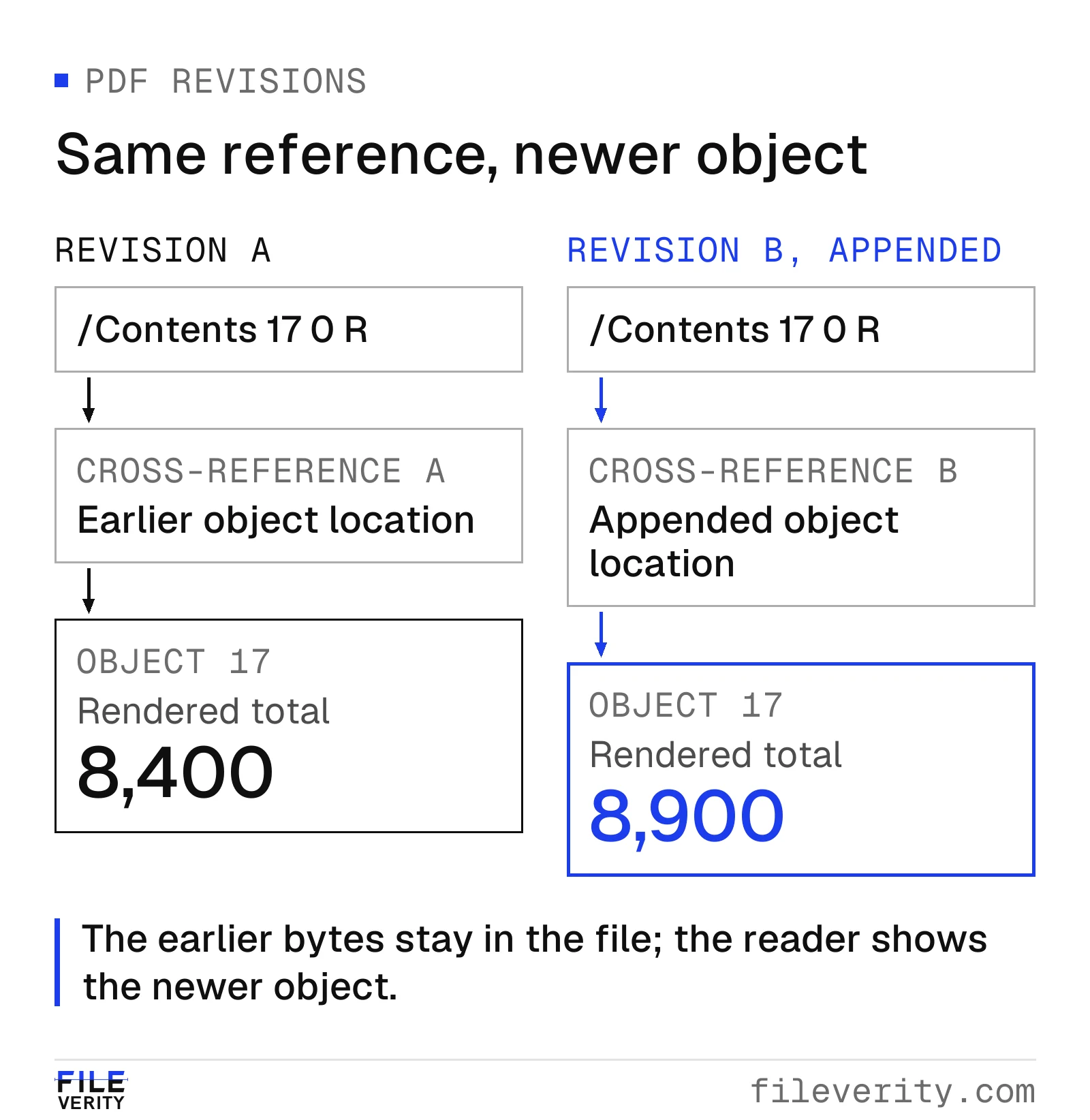
Simplified incremental update: the new cross-reference resolves object 17 to the updated total, while the earlier bytes remain in the file.
Structural provenance inspection is one principle used in Fileverity's document analysis. Its checks examine stored metadata and structural indicators associated with revisions. They can identify reasons to investigate the file history. Document analysis also compares the text of each recoverable revision with the final file and names the pages where the text changed, including changes made after a digital signature. That establishes that a page's text changed; whether the change was authorized, and what a field originally said, still needs the revision itself and the issuer's version.
The distinction prevents two common errors. First, multiple save-related structures can result from an authorized comment or signing operation; they do not identify malicious editing. Second, a full rewrite or fresh export may discard earlier representations, so the absence of recoverable history cannot clear the document. Even a recovered old amount needs interpretation: it might belong to an obsolete form value, an attachment or a legitimate earlier version.
For a material discrepancy, request an examination that connects the earlier and current rendered field to their respective file revisions, then compare them with the issuer-confirmed version. Do not substitute a raw keyword search or revision indicator for that chain of evidence. Fileverity's structural checks are one layer of the review, alongside separate content comparison, signature validation and authorization checks.
A historical invoice scan: one balance changes the reconciliation
This 1912 Dowdeswell Galleries invoice shows 560-0-0, a deduction of 400-0-0, and a balance of 160-0-0. The notation is historical pounds–shillings–pence. Fileverity used AI to change the displayed balance to 760-0-0 in a separate derivative while leaving those two component amounts unchanged.
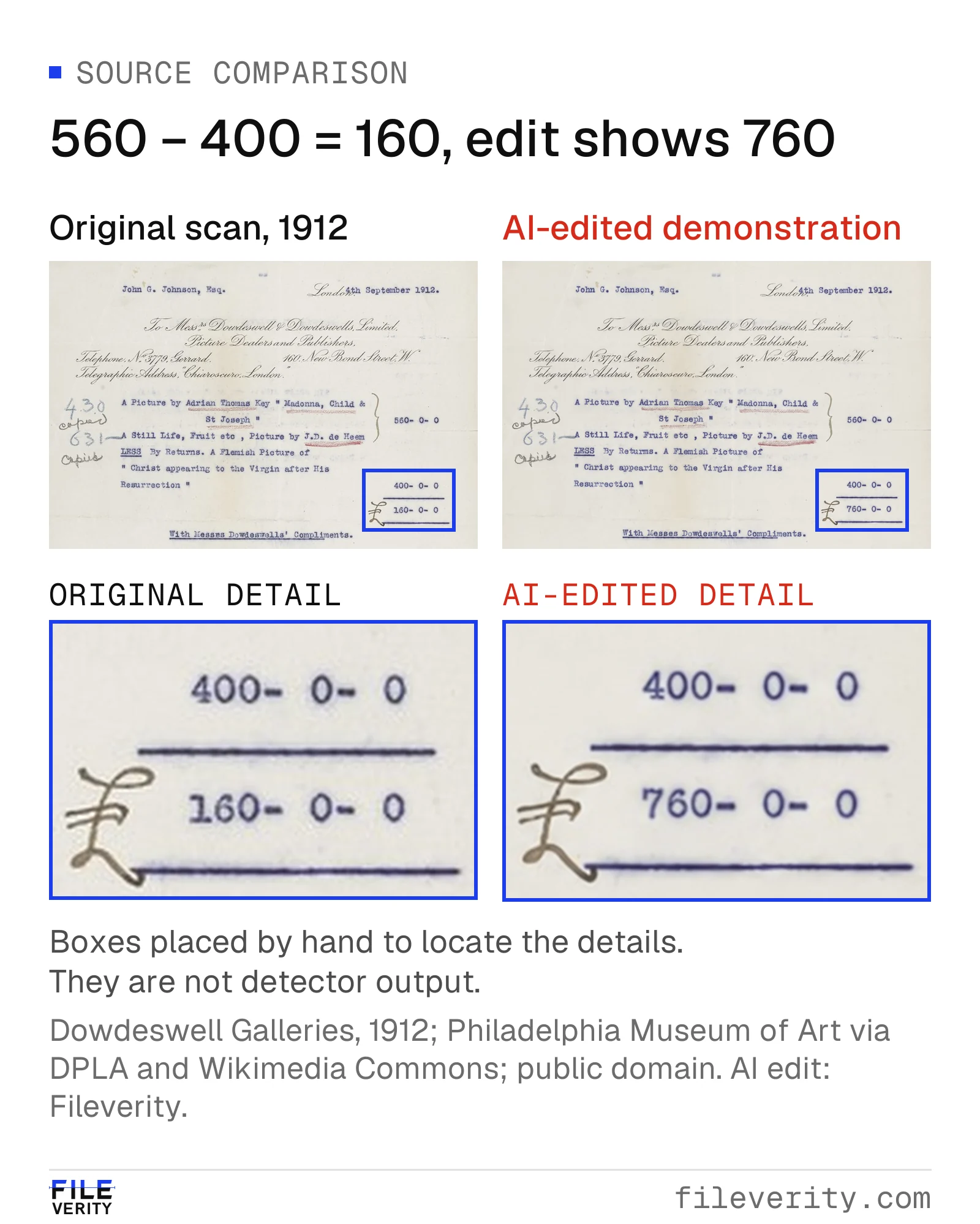
AI-editing demonstration using a real archival invoice: the balance changes from 160 to 760 pounds, while the two component amounts stay the same.
Source: Dowdeswell Galleries, 1912; Philadelphia Museum of Art, via DPLA and Wikimedia Commons; Public Domain Mark, with the source record identifying public-domain status in the United States. AI alteration and layout: Fileverity. The original scan is retained separately.

The source arithmetic is 560 − 400 = 160 pounds, with zero shillings and pence in each entry. The edited balance exceeds that result by 600 pounds. This visual comparison tests arithmetic; inspecting a PDF revision would require the PDF file itself.
Worked example: an invoice total and account mismatch
Consider a hypothetical invoice, INV-1048, with no tax. The supplier portal shows services of $8,000 and delivery of $400, totaling $8,400. The received PDF shows the same line items but a total of $8,900. It also lists a different account ending. There is no verifiable digital signature.
| Item | Portal reference | Received file | Review finding |
|---|---|---|---|
| Services plus delivery | $8,000 + $400 | $8,000 + $400 | Line items agree |
| Displayed total | $8,400 | $8,900 | Received total exceeds line-item sum by $500 |
| Account ending | 1842 | 7719 | Payment destination differs |
| Hypothetical OCR output for received total | Not applicable | $8,9OO | Check against visible $8,900; letters are an extraction error in this example |
First confirm that both documents are the same invoice revision. Then calculate $8,900 − ($8,000 + $400) = $500. This establishes an arithmetic inconsistency in the received document. It does not establish who changed the file or whether the supplier originally made an error.
Record the amount and account as separate discrepancies, and route the payment instruction through the organization's exception process. If the supplier confirms the portal version and says no replacement exists, the finding is precise: “The received PDF differs from the supplier-confirmed invoice in total and payment destination.” The OCR error stays in the extraction notes. For confirmed, contradicted and unresolved payment instructions, use the document-review routing example.
Fileverity document verification brings supported PDF signature checks, scanned amount and date relationships, and source locations into one report. Signature results distinguish valid, invalid and indeterminate outcomes against configured trust material. Review the extracted fields against the visible page and use the report’s coverage notes to identify any further validation needed.
Keep a review record someone else can use
Use this compact checklist before closing an exception:
- Received evidence: original file, source, receipt time and hash if used.
- Reference: exact file or issuer record, retrieval channel and reason it is the correct revision.
- Checks: viewer and version, signature details, comparison settings, page ranges and manually checked fields.
- Findings: exact observed differences, separated from interpretations and unconfirmed explanations.
- Resolution: independent confirmation, decision, responsible reviewer and unresolved questions.
A completed review might conclude that a discrepancy was an authorized revision, that material differences remain unresolved, or that the available evidence is insufficient to establish history. Prefer those specific outcomes to a broad “fake” or “clean” label.
Choose the check your document needs
For a changed amount, use the reference and comparison workflow above. For a signature question, use a PDF signature validator. For a drafting or disclosure requirement, Fileverity document verification assesses the running prose of PDF, Word and text files and flags the passages that read as AI-written. Forms, tables and very short passages are outside that writing assessment; document analysis also reads scanned pages.
SHA-256 binds the uploaded file and report data; private evidence commitments are checked on export. Locations, evidence IDs and coverage support review. A trusted timestamp or PDF seal is indicated only when the corresponding validation succeeds. If the service or validation material is unavailable, a report can still be delivered with that proof explicitly absent. A timestamp establishes that data existed at a time, not that document facts or findings are correct.
See how to select document fraud checks, including AI-generated content for a drafting-policy example. Your first document check includes a free result summary. Use it on a real PDF to review the assessment, then unlock the available revision, scanned-page and embedded-photo evidence with a document credit; talk to sales about volume and claims-system integration. Fileverity analyzes files on servers operated by Entogo in Toronto, Canada and deletes them once the analysis is complete. The Trust & security page sets out data handling, including private deployment for Enterprise on request.
Private evidence remains in the current tab for at most 3 hours from receipt; refreshing does not extend this window. Closing the tab or signing out may clear it earlier. The server deletes temporary evidence after acknowledged delivery; undelivered results expire. Original files and generated PDFs are not a long-term archive; summaries and verification records remain. Mail providers and inboxes apply their own retention policies. After expiry, only a results copy without excerpts or previews may be available.
By Yang Zheng · Reviewed by Bill Liu