Evaluating detection
How to Check a Whole Class Set of Essays for AI at Once
Review class submissions for AI writing in one batch. Download steps for Classroom, Canvas, Moodle, Teams and more, with guidance on interpreting results.
Published · 9 min read
On this page
To review a class set of essays for signs of AI writing, download the assignment submissions from your learning platform as a ZIP file and upload it to the batch check. Each completed check returns a separate result with passages highlighted for review. No plugin installation is required. This guide explains the download steps and practical considerations for each platform.
The guide is for teachers and lecturers using Google Classroom, Moodle, Canvas, Microsoft Teams, Blackboard or Brightspace. It covers school coursework and university assignments, with a workflow that saves you from opening and pasting each essay separately.
The method in four steps
- Download the submissions for an assignment from your learning platform. Follow the relevant platform instructions below.
- Open the batch check in the Fileverity Console and add the ZIP file. You can also add individual PDF, DOCX, DOC, ODT, RTF, PPTX, TXT and HTML files.
- Wait for processing to finish. Each completed check returns an assessment of the text with relevant passages highlighted. You can sort the results list.
- Open the results that need review and read the highlighted passages in context. Export a CSV file to keep a record or organise the results in a spreadsheet.
Verified teachers receive the Pro plan free for 12 months, including the batch check, and 240 credits a month for image and document reports after their teaching status is confirmed. See the teachers page for details. The figure shows how a ZIP becomes a list of individual results.
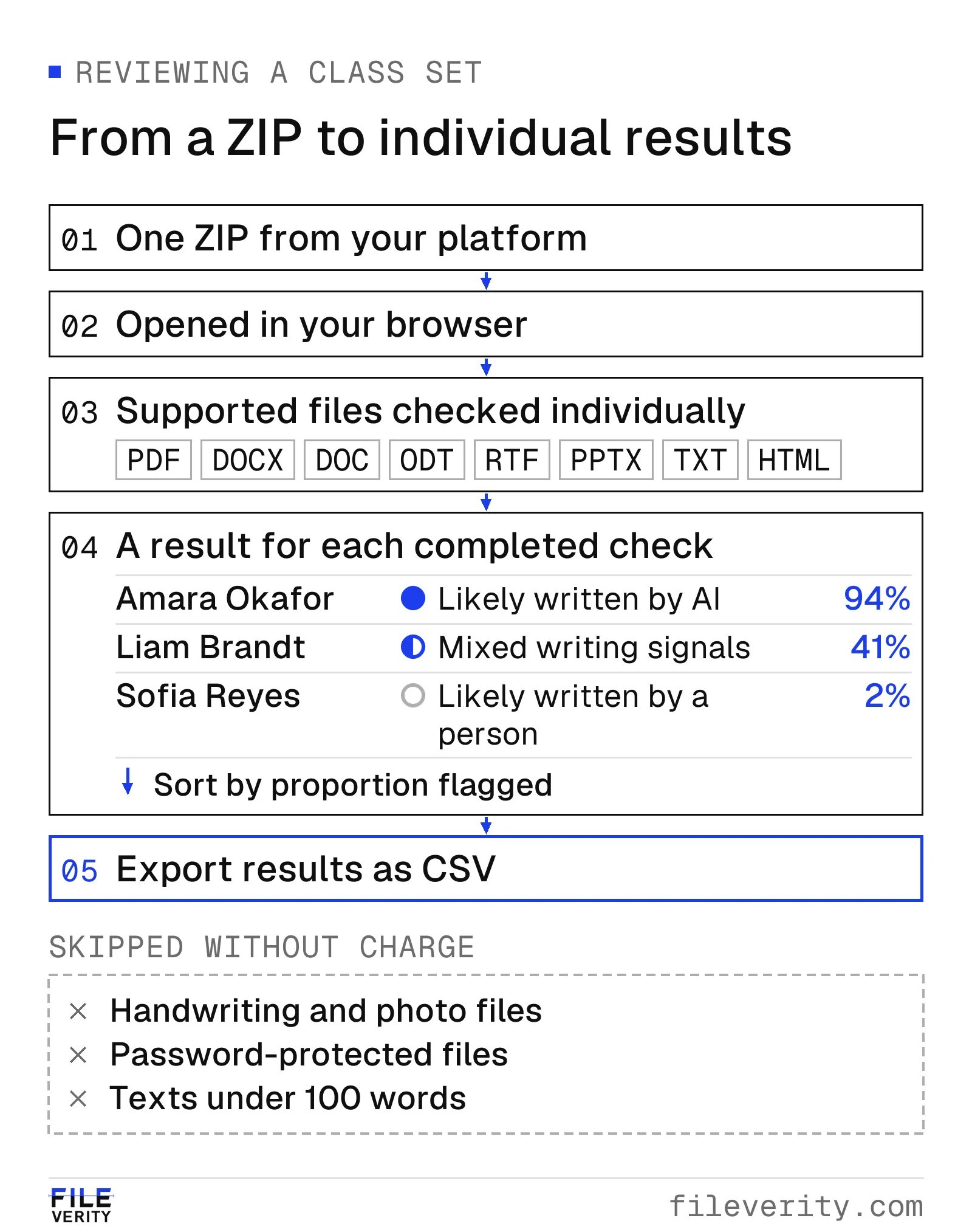
Each completed check has its own result, sortable by the proportion of text flagged. The student names and percentages are illustrative.
What the batch check reads, and what it skips
Review the contents of the ZIP before uploading it. Supported formats and processing limits are listed below.
| File or situation | What happens |
|---|---|
| PDF, DOCX, DOC, ODT, RTF, PPTX, TXT, HTML | Read as text |
| Online text from Moodle or Canvas, saved as HTML | Read, like any other HTML file |
| A scanned PDF of printed text | Read with OCR in English, French, German, Spanish or Chinese, up to 40 scanned pages in a file, and marked as a scan in the result |
| Handwriting, and photos sent as JPG or PNG files | Not read; save printed pages as a PDF, and check handwritten work another way |
| Password-protected files | Not read |
| A document over its size limit | Not read; the limit is 50 MB per document, or 4 MB for HTML and Markdown |
| More than 300 files | Divide the submissions into separate batches; each batch accepts up to 300 files |
| A text under 100 words | Not checked; each text must contain at least 100 words |
Each result shows the folder and file name, helping you match it to the original submission. If your ZIP contains several assignments, use the Check only filter to include files whose folder or file name contains the text you enter, such as an assignment title.
Where the download is on each platform
The download route, folder structure and available submissions vary by platform. The figure compares five platforms; the sections below provide instructions for six.
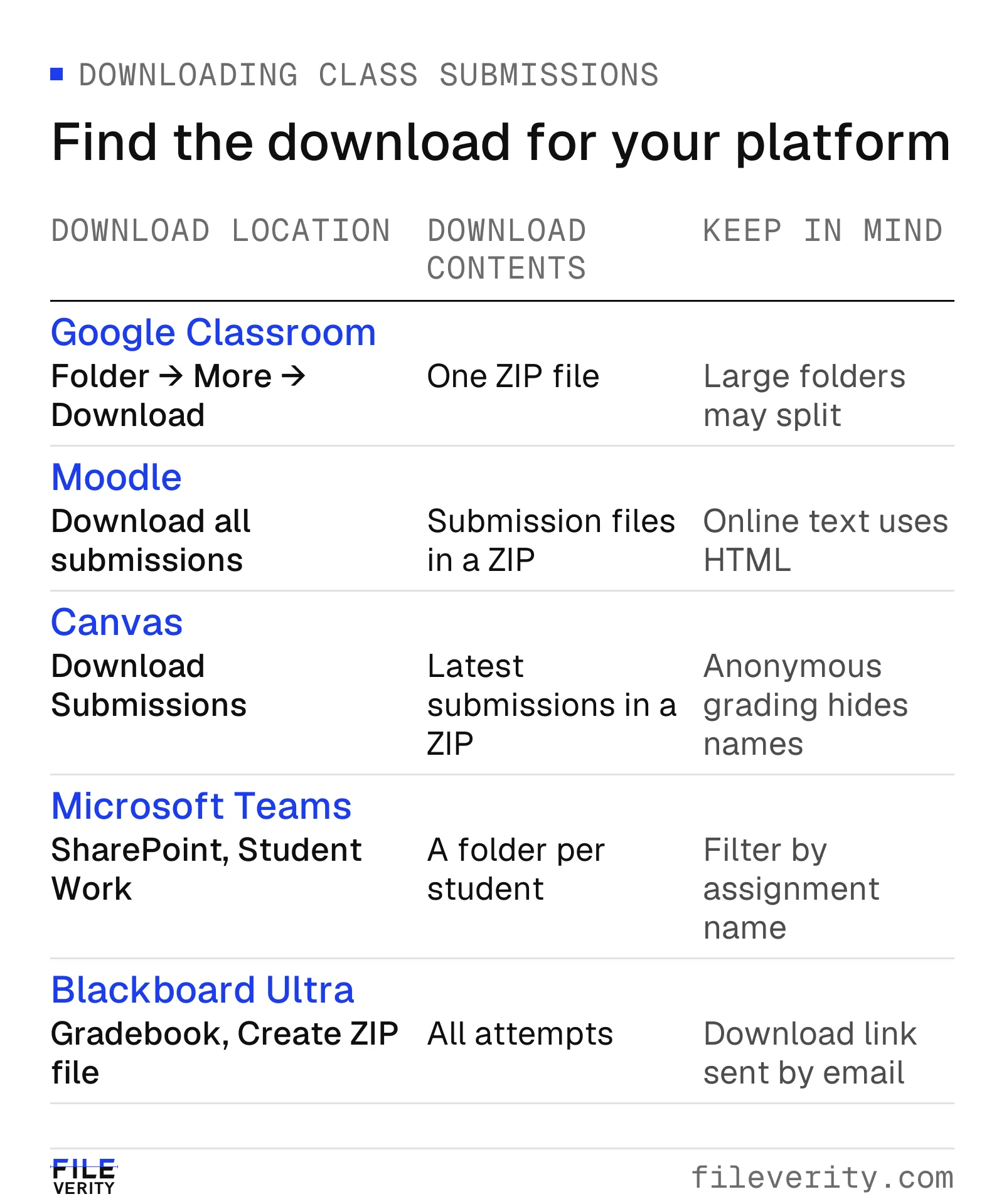
Download contents vary: Canvas includes the latest attempt, Blackboard Ultra includes all attempts, and the Teams workflow uses student folders in SharePoint.
 Google Classroom
In Classroom, open the assignment and use the Folder button to reach its folder in Google Drive, then choose More and Download. Drive prepares the folder as a ZIP file. Download a copy without deleting the source folder, which contains the submitted work.
Check the download before uploading it. A large folder may be split into several ZIP files; add each ZIP. Google documents must be exported in a supported format: if a document has not been converted to a Word, PDF or text file, open it in Google Docs and choose File → Download → Microsoft Word (.docx). These steps follow teacher guides; labels may vary in your version of Classroom. For a single late or resubmitted Google Doc, the optional Fileverity Chrome extension checks it where it is open, with no export.
 Moodle
Open the assignment's Submissions view, then choose Download all submissions from the Grading actions menu above the grading table. Moodle exports online text submissions as HTML files, which the batch check supports. Select Download submissions in folders below the table to place each submission in a separate folder and preserve the student's name in the results.
File names include the student's first and last name followed by a unique identifier. If the assignment allows resubmissions, inspect the ZIP to confirm which attempts it contains.
 Canvas
Open the assignment page and choose Download Submissions in the right-hand sidebar. Canvas creates a ZIP containing each student's latest submission. University guides describe a submissions folder with files named by surname first and online text entries saved as HTML.
Check three exclusions before reviewing the files: earlier attempts, students with concluded enrolments, and media recordings or media embedded in text entries. Anonymous grading also removes student names from file names. These instructions follow university help pages; menu labels may vary in your version of Canvas.
 Microsoft Teams
For Teams, the download workflow uses the class team's SharePoint site. Submitted files are stored in the Student Work library, organised into student folders containing assignment folders. Microsoft documents the library name; the folder structure described here follows teacher and community reports.
Open the class team's SharePoint site, go to Student Work → Submitted files, and download the student folders. SharePoint packages selected items or a folder as a ZIP. Add it to the batch check and enter the assignment title in Check only to include files with that text in their folder or file name. Alternatively, sync the library with OneDrive and search for the assignment name in File Explorer.
 Blackboard
The steps depend on your Blackboard course view. In Ultra, open the Gradebook and the assignment, choose Download Submissions, select the students, then choose Create ZIP file. Blackboard sends a link by email and as a course message. In Original, open the Grade Center, open the assignment's column menu, choose Assignment File Download, select all students and submit.
Ultra includes all attempts, so a student who resubmitted may have several entries; online text is saved as text files. Original may also include a text file containing submission details and comments. Exclude these administrative files before running the check so they are not assessed as student writing. File names include the student's username.
 Brightspace
In Assignments, open the submission list and select all submissions. If the list spans several pages, increase the number of items displayed first; otherwise, only the current page may be selected. Choose Download to create a ZIP with a folder for each submission.
University guides describe folder names containing an identifier, the student's name and a timestamp. Each attempt has its own folder, and students who have not submitted are excluded. Certain characters in names may cause extraction problems, so check that the ZIP opens completely. Menu labels may vary in your version of Brightspace.
Read the class results
Sort results by the proportion of text flagged to prioritise your review, then read each submission in context. A flagged result cannot establish misconduct on its own. Our guide on what to do when an AI detector flags a student's essay explains how to compare earlier work, review drafts and discuss the writing process with the student.
Consider patterns across the class as well. Similar highlighted passages may reflect shared source material, a prescribed writing structure or an assignment brief that encourages similar responses. Review these possibilities before drawing conclusions about individual students. A CSV export lets you sort by folder or file name in a spreadsheet and retain a record of the checks.
For measured performance, including results on student essays and writing by language learners, see the Veread benchmark. Veread, Fileverity's text model, supports English, French, German, Spanish, Chinese, Vietnamese and Arabic.
If your school wants it inside the platform
The batch check runs in the Console without a plugin. Institutions that want to integrate checking into their own platform or workflow can use the Fileverity API, which accepts documents as well as text. The API guide outlines the questions to consider when evaluating a provider.
Common questions
How do I check a whole class of essays for AI at once?
Download the assignment submissions as a ZIP from your learning platform and add it to the batch check in the Console. Each completed check returns a separate result with passages highlighted for review. You can sort the list and export it as a CSV file.
Can I check Google Classroom assignments for AI?
Yes. Open the assignment, use its Folder button to reach Google Drive, download the folder as a ZIP and add it to the batch check. No plugin installation is required. Follow your institution's rules for using online tools with student work.
Can I download all Canvas submissions for an assignment?
Yes. On the assignment page, choose Download Submissions in the sidebar to get one ZIP file. It holds each student's latest submission only, and students with concluded enrolments are not included.
How do I get Moodle online text submissions into an AI check?
Choose Download all submissions from the Grading actions menu of the assignment. Moodle saves online text as HTML files inside the ZIP, and the batch check reads HTML files as well as Word and PDF files.
Why can't I download one assignment from Microsoft Teams?
The SharePoint workflow organises submitted files by student. Download the folders from Student Work on the class team's SharePoint site, then use Check only to include files whose folder or file name contains the assignment title.
Will the batch check read scanned essays or photos of handwriting?
The batch check uses OCR to read scanned PDFs of printed text in English, French, German, Spanish or Chinese, and identifies scanned text in the result. Review it with care because recognition errors can affect the analysis; request the original digital file when available. Handwriting, image files and password-protected files are not supported.
Do I need my school's permission to check a class?
No plugin installation or platform integration is needed, but your institution's rules for sharing student work with online tools still apply. Obtain any required approval and remove identifying information where those rules require it before uploading files.
Sources
Platform steps were checked on 12 November 2026 against the pages below. Where the platform's own help page was not available, the university pages are named as such.
- Moodle Docs, Using Assignment, last edited 25 April 2026.
- Anthology, Download assignments (Blackboard Original), last modified 14 July 2026.
- Boston University, Download assignments in Blackboard Ultra, and Southern Illinois University Edwardsville, Blackboard Ultra submissions, updated 21 August 2026.
- Simon Fraser University, Download submitted assignments (Canvas); Florida State University, Download all student submissions (Canvas), updated 13 April 2026; Bowdoin College, Downloading all student submissions for an assignment.
- Microsoft Learn, Assignments admin documentation, updated 10 March 2026; Microsoft Support, Download files and folders from OneDrive or SharePoint; Microsoft Tech Community, Teams Assignments and SharePoint documents (community replies, 2018 to 2023).
- Millersville University, Downloading student submissions from assignments (Brightspace), updated 23 September 2026; University of Vermont, Assignment tool, updated 21 September 2026.
- Alice Keeler, Google Classroom: save student work, 2015 (third party; Google's help pages do not describe the folder download); Google Workspace Updates, Improvements to downloading files and folders in Drive, 18 August 2016.
By Yang Zheng